
Newsletter Digests configuration
Building a working digest in six steps, then the reference — the post it creates, the schedule, the nine kinds of section and their options, and what to check when a draft comes out wrong.
A newsletter digest is the roundup Ghost doesn't send on its own: what did we publish today, or this week. You describe the shape once, and each run assembles it from your posts and leaves a draft — or publishes and emails it.
Get it running
- Make an automation and name it. New automation asks for a name and nothing else — "Weekly digest" will do. Everything after this is on its page, and everything saves, so you fill it in once. 1:44
- Describe the post it should create. The Newsletter title becomes the post title and the email subject — put
{today}in it for the date. Then choose a feature image and the Post access. 2:13 - Add your sections. A standing welcome paragraph is a Static content section pointing at a Ghost page by slug — write it once in Ghost, and every issue picks it up. Then add a Recent posts section for the stories themselves and choose how they should look. 4:57
- Set the Recent posts query. How many days back (seven for a weekly), a limit if you want one, and the required and excluded tags. Exclude the tag your newsletters carry — see Tags below — or next week's digest will summarise this week's digest. 7:52
- Save, then Save a draft to Ghost now. Read the whole thing in the Ghost editor before you trust it to anyone. Any section that found nothing is reported to you as a warning rather than hidden. 9:43
- Only then, schedule it. Tick Schedule, pick the days and the hour, and decide whether a run drafts, publishes, or publishes and emails. 4:10
Everything below is reference — every setting in full, all nine section types, and what to check when a draft comes out wrong.
The walkthrough builds a digest from an empty automation to a sent email in twelve minutes. It's the oldest of these videos, so the tool has grown since: the sections it shows are the first few of nine, and the repeat-protection it does by hand with tags is now built in.
Automations
A digest is built by an automation: a named recipe for one newsletter, with its own settings and its own list of sections. A site can have as many as it likes, so a Monday roundup and a monthly events mailer can live side by side. New automation asks only for a name; everything else is on the automation's page, and changes take effect when you press Save.
Save a draft to Ghost now builds the newsletter from the saved settings and leaves it in your Ghost drafts, whatever the schedule says, so you can check a change before the next scheduled run. Two checkboxes beside it exist for test drafts: untick Add #previously-sent to the posts it uses and Consume the next queued poll and the draft leaves no trace in the tagging or the poll queue. A scheduled run always does both.
The post it creates
Every run creates one Ghost post. The first card on the automation's page decides what that post looks like from the outside.
- Newsletter title. The post's title, and the email's subject line. Write
{today}anywhere in it and the run's date is filled in, as Monday, March 3rd, 2026. - Custom excerpt. Optional; shown in feeds and social cards. It takes
{today}too. - Feature image. No feature image; Use first post's image, which takes the feature image of the first post in the first Recent posts section (that post then doesn't repeat its image in the body, and in the Image format it's skipped entirely; if it has no image, the newsletter gets none); Upload or paste an image, stored on your Ghost site; or Use image from a Ghost page, by slug, drafts included.
- Tags. Applied to the generated post. Give every newsletter a tag of its own —
newsletter, say — and exclude that tag in your Recent posts sections. Otherwise each issue is a published post like any other, and the next one will dutifully summarise it. - Post access. Public, Members only, Paid members only, or Specific tiers. Applies to the post on your site; who gets the email is a separate choice, under the schedule. They're independent, so decide them together — a digest restricted to paid members on the web can still be emailed to your whole list.
The schedule, and what a run does
Tick Schedule to run the automation on its own. Times are in the site's default timezone, set in Site settings.
- Weekly: every N weeks, on any set of days. With N above 1, an optional first run starts week of the year delays the first run so a fortnightly digest lands on the weeks you mean.
- Monthly: on one day of the month, 1 to 28, so February can't skip a run.
- At: the hour, on the hour.
When the automation runs is what a scheduled run does with the post it builds. Save a draft to Ghost now ignores it and always drafts.
| Action | What happens |
|---|---|
| Save as draft | The newsletter appears in Ghost's drafts for you to review. No email is sent. |
| Publish | The post goes live on the site, subject to Post access. No email is sent. |
| Publish & email | The post goes live and Ghost sends the email to the recipients you pick. |
| Email only | Ghost sends the email, and the post stays hidden from the site. |
The two emailing actions ask which Ghost newsletter to send from and who gets it: free members, paid members, specific tiers, specific labels, any combination. A member who matches any one of them is sent the email. If nobody matches when the run happens, the run saves a draft instead and emails the site owner to say so.
Drafting is free. Scheduled runs are part of the Core plan.
Sections
The newsletter's body is the Content Sections list, top to bottom, in the order shown; the arrows on each section move it. Every section has:
- a name, which is the heading text when the section has a title, and the alt text when the title is an image;
- a title choice: No title, h2, h3, or Image, an uploaded picture shown at full content width in place of a heading;
- Required — don't send if this section is empty, for a section the issue makes no sense without. A run whose required section came up empty stops without creating a post.
Horizontal rule between sections puts a divider before every section after the first; untick it for a blank line instead. The share buttons carry their own top border and never get one.
Recent posts
The posts that match a query, rendered in a style. The query: Required tags (a post needs every one), Excluded tags, Featured (both, featured only, or not featured only), a Date mode of all matching posts or the last N days, a Limit, and Include draft posts for previewing an issue before its stories are published.
The Format is how each post is written out:
| Format | Each post becomes |
|---|---|
| Summary | Title, feature image, excerpt. |
| Summary no image | Title and excerpt. |
| Summary + button | Title, feature image, excerpt, and a Ghost button card. |
| Image | The feature image with its caption. |
| Bookmark card | Ghost's bookmark card for the post. |
| Product card | Ghost's product card: image, title, excerpt, button. |
| Bulleted list | One bullet per post: title and excerpt. |
| Full | Title, feature image, and the whole body. |
| Full + excerpt | Full, with the excerpt between the image and the body. |
| Body only | The whole body, nothing else. |
Under the format: the level of each post's title (h2, h3 or h4; h3 by default, so titles nest under an h2 section heading), Link to each article with the Button text for the formats that have a button (Read more unless you say otherwise), and Use auto excerpt if no custom excerpt. The auto excerpt is the start of the post's text, so a post that opens with an image or an embed reads poorly there; give those posts a custom excerpt.
Static content, minimal and full
Content that reads the same every issue, kept in Ghost where you can edit it: the welcome line, the donate ask, the sign-off. Pick a Page or a Post by slug, with Include drafts for one you never publish. Minimal drops in the body only; Full adds the title and feature image, with the title at Auto (h2 when the section has no title of its own, h3 under one), h2, h3 or h4. A draft post is the place for email-only cards, which Ghost won't put in a page.
Haunts events
The upcoming list from one of your Haunts calendars, as a single card. Start is how many days from today the list begins, Cover how many days it spans, and Max events caps it. The layout controls are the ones on the calendar's Export tab, so a digest matches an export: featured only, split by day, date or title first, description length, bullets or paragraphs, where the link sits, and which categories.
Share buttons
The Sharing tool's circle buttons, pointing at this issue's own post. Choose the platforms and the circle colour: your site's accent colour from Ghost, white, or black. Give the section a title if you want a heading over them; the buttons have none of their own. On a draft the link is a best guess from your site's URL structure, so re-check it if you change the slug before publishing.
Ad
A newsletter slot from the Itty Bitty Ad Server. The digest carries only the slot; the ad is chosen for each reader when they open the email, rotated by weight among the slot's ads, and its opens and clicks land in the ad server's analytics. A slot with no enabled ad is a warning on the run, not a blank card.
Poll
A question from the Polls tool. The next poll queued for the newsletter takes the oldest poll you've queued there, links it to this issue so email votes land on the issue's page, and takes it off the queue; results are kept per issue, and Close the poll N days after sending sets a closing date unless the poll has its own. With nothing queued, the section is left out. Always this poll runs one standing poll in every issue with a single running tally; it's never linked to the newsletter.
Table of contents
A linked list of this issue's h2 and h3 headings, section titles and post titles alike, built after the post exists so the links work in the email. Set the heading text, or leave it blank for none; Include h4 headings reaches into full post bodies. Put it wherever you like. If the issue has nothing to list, the card and its divider are left out.
Weather
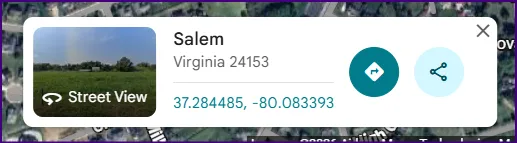
A forecast box for one location: Latitude, Longitude, and 1 to 7 forecast days. The location is checked as you type. Forecasts come from the US National Weather Service, so a location outside the United States produces no section. To get your latitude and longitude, head over to Google Maps and add a point; the popup will give your coordinates:
Not repeating a post
Two settings, both on by default:
- Don't repeat a post in a later section of the same newsletter. A post one Recent posts section picked up, shown or not, is left out of every later one, so a section's limit means that many fresh posts.
- Avoid duplicate posts between newsletters. After the post is created, every post a Recent posts section used gets a tag (
#previously-sentunless you pick another; a tag starting with#stays internal), and every Recent posts section leaves tagged posts out. Static content sections are never affected. Tagging happens on scheduled runs and on Save a draft to Ghost now alike, since some sites send by hand; for a test draft, untick the checkbox beside the button, or remove the tag in Ghost afterwards.
When a draft comes out wrong
A section is missing from the draft
It found nothing to render — usually a Static content section whose Ghost page slug doesn't exist or is spelled differently, or a Recent posts query that matched no posts. The run tells you which section it skipped rather than failing silently, so read the message beside the draft button.
If a section matters enough that an issue without it shouldn't go out at all, tick its Required box. The run then stops instead of sending a hollowed-out newsletter.
My newsletter is summarising my last newsletter
Each issue is a published post, so it matches a Recent posts query like anything else. Tag your newsletters (see Tags) and put that tag in the section's Excluded tags.
The same stories keep coming back week after week
That's a different problem with its own answer — see Not repeating a post.
The images are enormous
That's the Recent posts format, not a bug. The summary formats lead with each post's feature image at full width. For something tighter, switch the section to bookmark cards or the bulleted list, save, and draft it again — comparing two drafts side by side is the quickest way to choose.
The scheduled run didn't happen
Check that Schedule is ticked, that the site's default timezone in Site settings is the one you meant (the hour is read in that zone), and that the site is on the Core plan — drafting by hand is free, scheduled runs are not.
It saved a draft when it should have emailed
Nobody matched the recipient rules at the moment the run happened. Rather than send nothing or send to everyone, the run drafts the newsletter and emails the site owner to explain.
I can't publish or tag, only draft
Your site is saved with a contributor staff token rather than a full Admin API key. A contributor token is enough to build and draft a newsletter, and deliberately can't publish it or apply tags. Swap in an Admin API key if you want scheduled publishing — see Connect your Ghost site.
Contributor access
If you give a contributor a Newsletter Digests grant (Site settings → Users), use lets them open an automation and save a draft to Ghost; manage lets them change it.