
Popup Builder configuration
Getting a popup live on a Ghost site in six steps, then the reference — the five types, content and appearance, triggers, the advanced targeting, and why a popup you built isn't showing.
The Popup Builder puts signup, upgrade and call-to-action popups on your Ghost site through a single code-injection tag. It needs no Admin API access and no theme editing, so it works on every Ghost plan including Ghost Pro's Starter tier.
Get it running
- Fill in Shared Settings. Your Ghost Site URL, and a Content API Key from Ghost → Settings → Integrations. That's the Content key, not the Admin one, and it isn't a secret — Ghost's own Portal and search already expose it in your site's source. Without it, member tiers won't load and no popup will display. 0:56
- Add a popup and pick its type. Press + Add popup and choose from the five types — a signup button, an inline email form, an upgrade ask, a tier upsell, or a plain call to action. 2:06
- Write it and style it. Put your headline and message in the Content editor, pick an image — your site's cover, icon and logo are offered, or upload one — and choose an arrangement. Uploaded images stay in the library for the next popup. 5:01
- Set a trigger and an audience. A popup needs at least one trigger — after so many minutes, or so far down the page. Under Advanced settings, decide who sees it: public visitors, free members, paying members, or particular tiers. Getting this wrong is the single commonest reason a popup never shows. 6:17
- Save, preview, then paste the embed once. Press Save, check it with Preview, then copy the Embed Code from the bottom of the page into Ghost → Settings → Code injection → Site footer and save there too. You only ever do this once. 7:49
- Check it on your live site — signed out. Open your site in a private window, because a popup aimed at public visitors will not show to you while you're logged in as staff. 11:20
Everything below is reference — each type's fields, the appearance options, the targeting, and what to check when a popup doesn't show.
The walkthrough builds a popup from the first click to the live site in fifteen minutes. One part of it is out of date: it ends by saying that changes don't go live until you copy the code across again, and offers self-hosting the runtime file. That described the old embed, which carried your settings baked into it. The tag you paste now is a small loader that fetches your settings itself, so you paste it once and every later Save reaches your site on its own.
Shared settings and the one-time install
At the top of the Popup Builder, Shared Settings holds what every popup needs:
- Ghost Site URL and Content API Key. To get the key, open Ghost → Settings → Integrations, press Add custom integration, give it a name such as "SWS Popup Tool", and copy the Content API Key it shows (the API URL beside it is your site URL). The key is a site setting, shared with the other tools that read your site. Without both, member tiers won't load, Preview won't work, and the popups won't display on your site.
- Excluded Paths, one per line: pages where no popup ever shows. Your privacy policy is a good candidate, as are any sign-in or membership pages your theme has, where a popup reads as an interruption rather than an invitation.
At the bottom, Embed Code is one script tag. Paste it once into Ghost → Settings → Code injection → Site footer. After that, every Save goes live on your site within about a minute; there's nothing to re-paste. If you still have the old, long embed from before mid-2026, it keeps working but no longer updates: replace it with this tag.
The five popup types
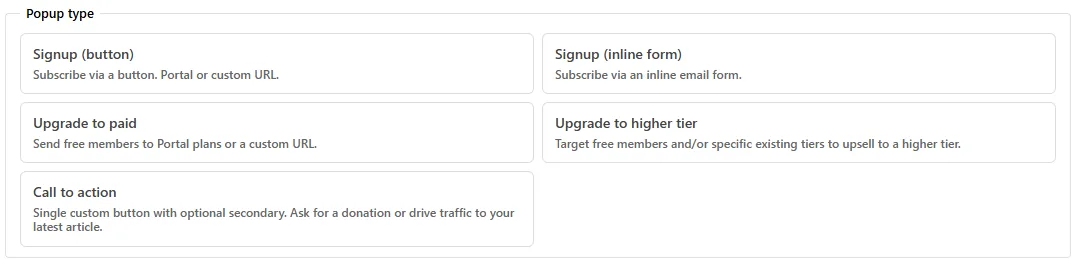
Press + Add popup and pick a type. The type decides who the popup is for and which buttons it has; the buttons take your site's accent colour, so they match your theme rather than ours.
| Type | What it does | Its fields |
|---|---|---|
| Signup (button) | A subscribe button that opens Ghost's Portal signup, or any URL you give it. | Button text and Button URL (#/portal/signup by default); an optional sign-in link for returning readers, with its text and URL (#/portal/signin). |
| Signup (inline form) | An email box and a Subscribe button that post straight to Ghost's magic-link flow, so the reader never leaves the page. | Submit button text; the Success, Error and Loading messages; the optional sign-in link. |
| Upgrade to paid | Sends free members to Portal's plans, or a URL. Shown to free members only. | Button text and Button URL (#/portal/account/plans). |
| Upgrade to higher tier | An upsell aimed at free members and/or members on specific existing tiers. | Button text and URL, plus which tiers see it. |
| Call to action | One primary button to any URL: a donation ask, your latest story, an event. | Primary button text and URL, and an optional secondary, bordered button with its own text and URL. |
Every text field is yours to change — button labels, the sign-in link, the dismiss link, the form's success and error messages — so a site published in another language can be translated end to end without touching code.
Content and image
Write the popup in the Content editor: use the heading button (H2 or H3) for your headline and add your message below it. Pick an Image from your site's images or upload one straight to Ghost; the picker keeps a library of what you've used, so an image uploaded for one popup is one click away in the next.
Resize a large image before uploading. Nothing in a popup needs five thousand pixels across, and your readers pay for every one of them.
Popups built before the editor existed pulled their content from a Ghost page. Those still work, and their cards offer Convert to built-in, which brings the content into the editor so everything about the popup lives in one place.
Appearance
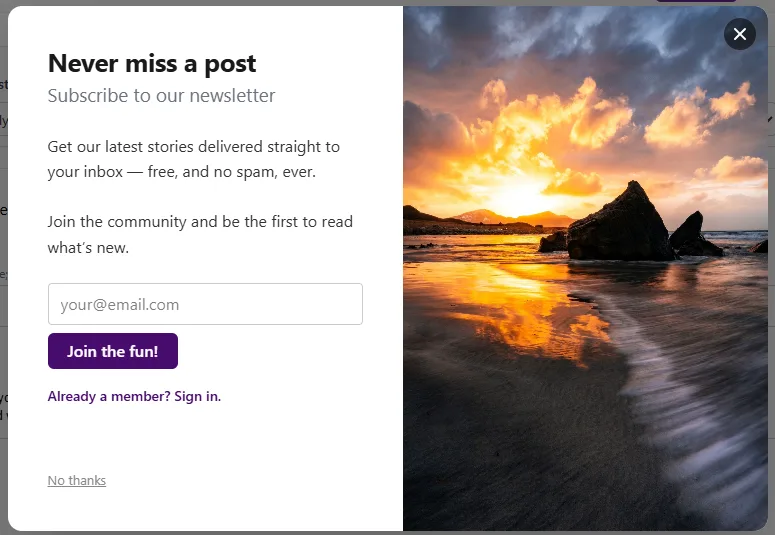
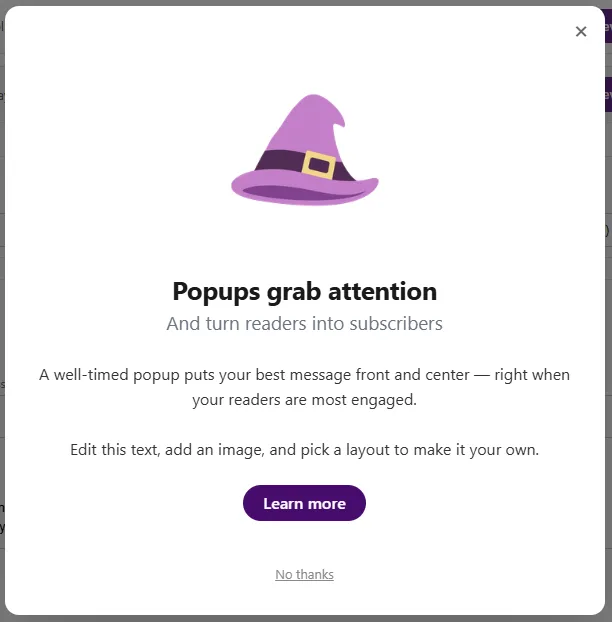
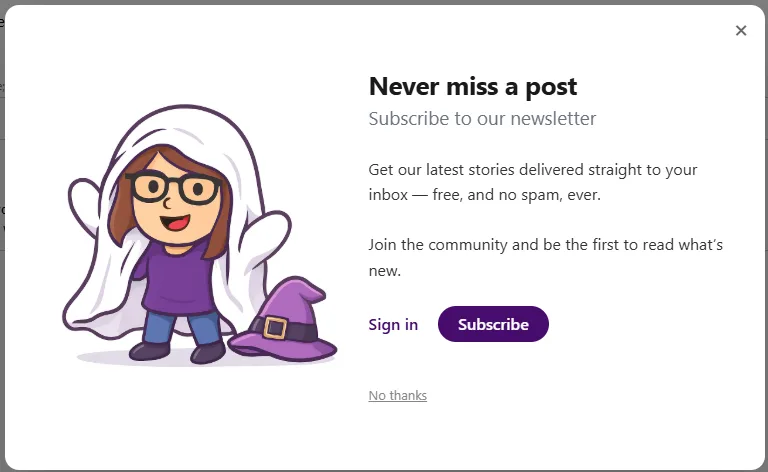
- Arrangement. Image on top with the text centred, image on top with the text left-aligned, image left with the text right, or image right with the text left.
- Image size and fit. Small or Large, crossed with don't crop (the whole image, height-capped) or full bleed (the image fills its area edge to edge; small and large then mean the banner height on top layouts and the strip width on side-by-side ones). A logo wants don't crop; a photograph usually wants full bleed.
- Display style. Modal slides up in the middle of the page; Fullscreen fades in over the whole page, and a side-by-side full-bleed layout becomes an edge-to-edge split.
- Button style (Rounded, Slightly rounded, Square) and Button width (Auto, or Full width).
Every arrangement works on a phone; the side-by-side ones restack. Preview on the card opens the popup here, rendered by the same script your site runs — though see below for why it isn't pixel-exact. Three of the arrangements, as the builder renders them:
Triggers
A popup needs at least one trigger:
- Time-based, after a number of minutes on the page (decimals allowed, so 0.5 is thirty seconds).
- Scroll-based, once the reader has scrolled a percentage of the page.
- Frequent visitors only: the reader must have viewed more than N pages in the last 7 days. This one gates the other two rather than firing on its own, so a time or scroll trigger must also be on. It's how you ask someone who keeps coming back, rather than someone who has just arrived — and it's worth turning off while you're testing, since it makes a popup hard to provoke.
Only one popup shows per page view. When two are due at the same moment, the one higher in the list wins; drag the cards to set that order. So if it matters most that people see the donation ask, give it the earlier trigger.
Advanced settings
- Audience. Public visitors (not logged in), Free members, Paying members (any tier), or specific tiers. A paid reader matches if Paying members is on or their tier is ticked. Upgrade to paid is always free members only; use Upgrade to higher tier to aim at particular existing tiers.
- Show popup based on post access. Aim a popup at posts by what the reader can do with them: whether they can read it, can't read it, or either, combined with the post's access setting (Public, Members, Paid, or specific tiers). A "can't read it" rule on paid posts is how you ask for an upgrade exactly where the paywall bites. Any selection here limits the popup to individual posts; it never shows on the homepage, collections, tags, or pages.
- Only show on these URLs, one per line; blank means everywhere.
/pricingis that page only;?src=partneris any page carrying that query parameter;/?src=partneris the homepage with it. Extra parameters in the reader's URL, such asutm_*, are ignored, and the Excluded Paths in Shared Settings still win. - Dismiss link. Show a "No thanks" style link below the buttons, with whatever text you like.
- Suppression. After this popup is closed by any route (the dismiss link, the primary button, or ×), suppress all popups for a number of hours. Set 0 and it can fire again on the next page load.
A popup you want to stop running but not lose has a toggle on its card. Deleting it is permanent — you'd rebuild it from scratch — so if you rotate between campaigns, toggle rather than delete.
Opening a popup from a link
Every popup has an ID on its card. Any link or button on your site can open one on demand, whatever its triggers, with SWSPopover.show('the-id'), and close it with SWSPopover.close('the-id'). Keep the IDs unique; the builder warns if two match.
When a popup doesn't show
Nothing happens on my live site
Almost always the audience. You are signed in to your own site, and a signup popup is aimed at people who aren't members. Open your site in a private window and try again.
The runtime says so out loud: open your browser's developer console and you'll see its reasoning, including "no popups qualify for this user" when a reader matches none of them. That one line settles most of these.
Still nothing, even signed out
Work down this list: the embed is in Code injection → Site footer and that page was saved; the popup itself is toggled on; it has at least one trigger; and you're looking at a fresh page load rather than a tab open since before you pasted the code.
It showed once and never came back
That's Suppression doing its job — closing a popup sets a cookie that holds all popups back for the hours you configured. Set Suppression to 0 while you're testing so it fires on every load, or clear the cookie. Put it back to something civil before you finish.
I changed a popup and my site still shows the old one
Settings reach your site through a cache that refreshes about once a minute. Wait a moment and reload. If it never updates, you're probably still running the old baked-in embed from before mid-2026 — replace the tag in Code injection with the current one from the bottom of the builder.
Preview doesn't match the live popup
Expected, within limits. Preview renders with the real script and your accent colour, but not your theme's stylesheet, so fonts and spacing can differ a little. Layout, images and behaviour are accurate; typography is approximate.
Member tiers are missing from the audience picker
The Content API Key in Shared Settings is missing or wrong — that's what reads your tiers. Fix it there and the list fills in.
A popup is appearing where it shouldn't
Check Excluded Paths in Shared Settings and Only show on these URLs on the popup itself. Remember that a post-access rule confines a popup to individual posts, so if you meant it to appear on your homepage as well, that rule is what's stopping it.
Contributor access
If you give a contributor a Popup Builder grant (Site settings → Users), manage lets them change popups; the Content API key itself is a site setting a site admin changes.